
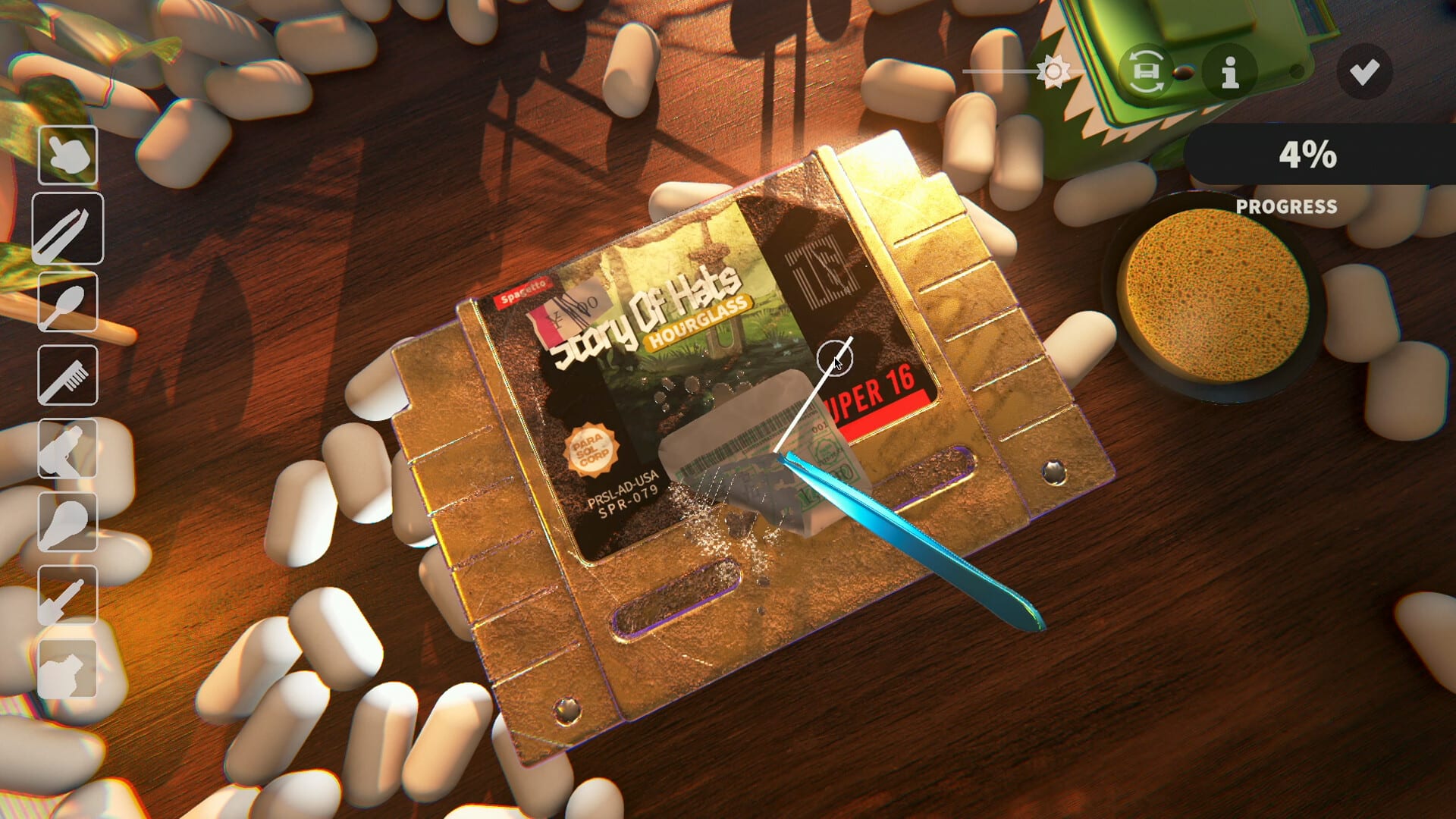
Official screenshot · Steam media gallery · © Parasol Corp. Material statement
Read the individual categories first
The most important distinction is between overall progress and the state of each cleaning category. Patch 6 describes a condition applied to all the relevant layers, so a strong result in one category does not compensate for unfinished work in another. Begin by identifying the category that is still below the required level rather than cleaning every surface without a target.
This also explains why two nearly finished objects can need different next steps. One may still have scratches, while another needs a small ink patch removed or the last sticker checked. The same overall figure does not establish that the same tool or movement will solve both restorations.
Check the Accessibility autocomplete option
The updated demo lets players disable autocomplete in Accessibility, so the threshold is not the only relevant condition. Confirm whether the feature is enabled before expecting the final portion of a clean to complete automatically. If you deliberately turned it off, the behavior is not evidence that the threshold rule has failed.
Keep this instruction scoped to the documented demo version. The supplied material establishes the setting in Patch 6, but does not independently test every screen or later full-release build. If your interface differs, compare the version and patch notes rather than assuming an unverified hotkey or hidden setting must exist.
Inspect with UV and return to the mark
The final-demo announcement describes a UV trail that helps players locate unfinished work and return to it with a cleaning tool. Use that feature to narrow the area you need to treat, then apply the appropriate technique for the remaining category. Leaving the torch on a mark does not remove it, because UV is an inspection tool rather than a cleaning agent.
Inspect the other surfaces when the visible face appears clean. A mark can be missed if your inspection covers only the front or if the normal lighting makes the remaining defect difficult to distinguish. A deliberate check of the object is more useful than repeating broad strokes over the area you have already finished.
Match the treatment to what remains
Scratches are associated with Polish, while ink and adhesive are associated with Solvent in the researched tool mapping. Tweezers handle stickers, and the heating tool assists removal before you clean any residue left underneath. Changing the treatment to match the unfinished layer avoids interpreting every stalled job as a need for more brushing.
Check the condition of the cotton tip or brush as well, because hands-on reports describe dirty tools spreading grime again. Clean the equipment when needed and return to the identified patch instead of adding an unsupported assumption about a broken progress counter. The tools guide separates treatment products, peeling tools, and inspection functions in more detail.
Why older advice says autocomplete is disabled
The October demo changed autocomplete more than once. Early October notes temporarily disabled the feature, while Patch 6 later introduced the more precise rule based on every category reaching the threshold. A guide that repeats the earlier disablement without the later revision is describing an older state of the demo.
This is why publication date and game version matter more than a familiar-looking screenshot. Two accounts can accurately describe different builds while giving apparently conflicting advice. Use Patch 6 for the researched final-demo condition, and avoid turning either the early disablement or the later behavior into an undated promise about every future update.
Historical sticker and scratch problems
The developer previously fixed phantom stickers on Silicon64 cartridges, where the leftover sticker behavior could prevent a perfect clean. The October notes also changed how CD scratches contribute to progress. Those records explain some older reports, but they do not establish that an identical-looking problem is still present in your current build.
Update and check the category before deciding that you have encountered a known bug. A scratch-weighting change, a missed surface, and a disabled setting are different explanations that require different checks. This guide does not recommend deleting a save as a universal solution because the evidence does not justify that destructive step.
Report a reproducible problem clearly
If the documented conditions appear satisfied and completion still does not happen, gather the details that distinguish your case. Include the game version, whether you are playing the demo, the item, the remaining category values, and the state of the Accessibility setting. A screenshot or short clip showing those details gives the developer more useful information than the overall percentage alone.
Use the official Discord guide to verify the developer's community destination, or follow the official Steam discussions linked in the sources. Describe the actions you performed without claiming that an old bug definitely explains the result. If your real problem is reaching the end of the trial after finishing a clean, the next level guide covers the separate day and content limit.
Separate the completion rule from a grade promise
The documented threshold explains when the updated demo's autocomplete can activate; it is not a general guarantee about every reward, sale price, or collection outcome. A nearly finished cleaning job and a later selling decision are different parts of the game's loop. Avoid turning one precise patch condition into a broader numerical promise that the research has not established.
The same caution applies when another guide abbreviates the rule to getting past 99%. That shorthand hides the difference between an overall average and four individual categories, which is the detail the developer changed. Use the full condition when deciding what to inspect next rather than treating a convenient summary as a different official threshold.
Make the next check small enough to interpret
Change one relevant part of the workflow at a time: confirm the setting, identify the unfinished category, inspect the patch, then apply the matching treatment. This is a practical way to use the documented information without pretending the site has performed a controlled gameplay test. It also makes a later report clearer because you can describe which check changed the result.
If all the visible conditions appear satisfied, record them before making a major change to your play session. The supplied evidence does not support a universal reset, a hidden perfect-clean code, or an unverified repair tool for the final percentage. A clear report tied to the build and item is the useful remaining action when the published demo rule no longer explains the behavior you observe.
Sources and version notes
This guide synthesizes the research checked on November 4, 2026. Demo changes and preview observations are identified in the text; this site does not claim independent gameplay testing.
Found an outdated detail? Send a correction with the game version and the relevant source.